APOSTLE
arrow_back Google's AI Creative Suite
Module 04 Google Flow

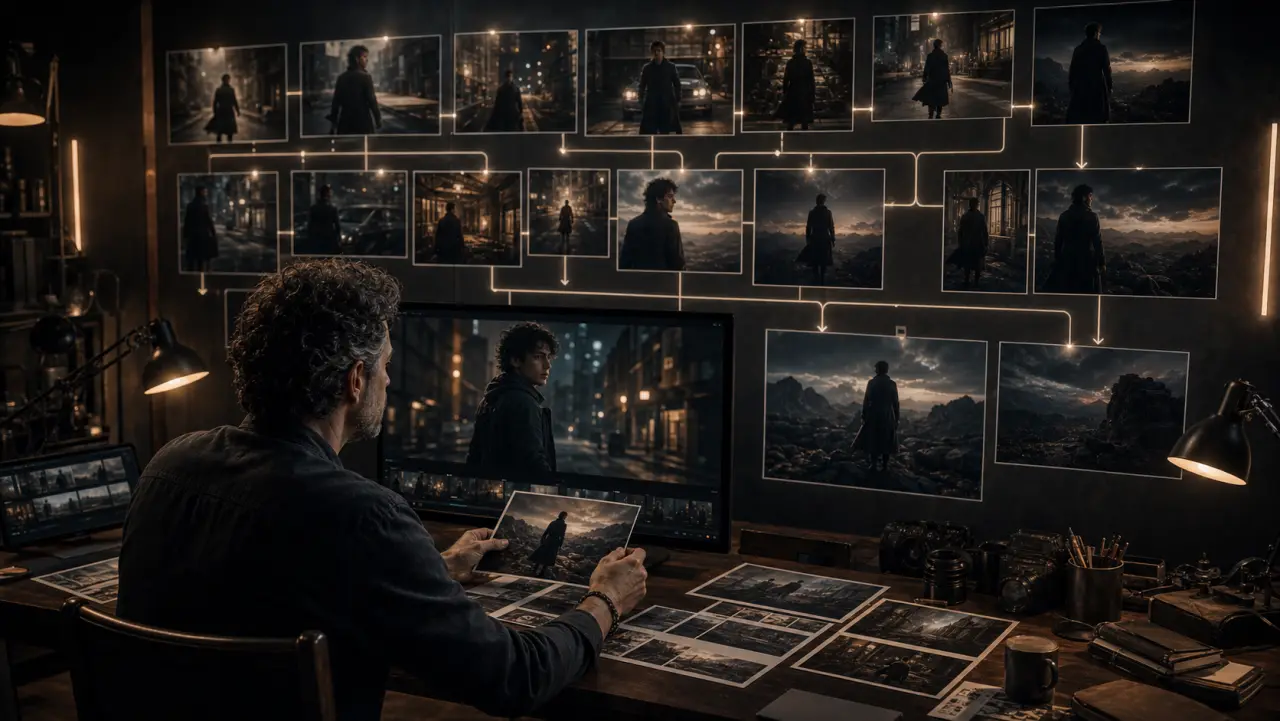
Multi-Scene Filmmaking in Flow

Master Google Flow as a multi-scene AI filmmaking workspace, combining Nano Banana Pro, Veo 3.1, and Gemini into a unified production environment for narrative video projects.

schedule 12 min
signal_cellular_alt Intermediate
menu_book Lesson 04 of 5

Learning Objectives

By the end of this module, you will be able to:

  • Navigate Google Flow's Scene Builder interface
  • Set up a multi-scene project with persistent Ingredients
  • Use Flow's AI Director to refine scenes iteratively
  • Manage a multi-shot narrative with consistent characters and environments
  • Export clips for post-production or assemble directly within Flow

What Is Google Flow

Google Flow is an AI filmmaking environment launched at Google I/O 2025. Think of it as Google's answer to the question: "What if Premiere Pro and Midjourney had a baby that understood narrative?"

Flow combines Nano Banana Pro (image generation), Veo 3.1 (video generation), and Gemini (language understanding) into a single workspace designed for creating multi-scene video content. Over 35 million videos have been generated in Flow since launch.

Google's stated vision is that Flow becomes "the Photoshop of filmmaking" — a creative environment where non-technical directors can produce professional video through conversation and reference materials rather than timeline editing.

What Flow is NOT:

  • It's not a traditional NLE (no frame-by-frame timeline editing)
  • It's not a replacement for Premiere Pro or DaVinci Resolve (you'll still need those for final polish)
  • It's not available as a free-standing app — it's a web-based environment

What Flow IS:

  • A multi-scene AI video generation workspace
  • A place to manage Ingredients (characters, styles, environments) across an entire project
  • A visual interface for Veo 3.1 with additional controls not available via the API
  • A pre-production and rough-cut tool that outputs clips for final editing

The Flow Interface

Flow is organized around four core areas:

1. The Scene Builder

The main workspace where you create individual scenes. Each scene is a prompt + optional ingredients that generates a video clip.

Scene structure:
┌─────────────────────────────────┐
│  PROMPT                         │ ← Your natural language direction
│  "A woman walks through a..."   │
├─────────────────────────────────┤
│  INGREDIENTS                    │ ← Attached reference materials
│  Character: Elena               │
│  Style: Warm cinematic          │
│  Location: Café interior        │
├─────────────────────────────────┤
│  SETTINGS                       │
│  Duration: 5s  Ratio: 16:9     │
│  Audio: Native  Camera: Dolly   │
├─────────────────────────────────┤
│  GENERATE → [Preview]           │
└─────────────────────────────────┘

2. The Ingredients Panel

A persistent library of reference materials available across all scenes in your project. Upload once, use everywhere.

Ingredients panel:
├── Characters
│   ├── Elena (4 reference photos)
│   └── Marco (3 reference photos)
├── Styles
│   ├── Warm Cinematic (3 mood images)
│   └── Brand Palette (color swatches)
├── Locations
│   ├── Café Interior (2 references)
│   └── City Street (3 references)
├── Audio
│   ├── Voice: Elena (ElevenLabs sample)
│   └── Music: Piano theme (Suno clip)
└── Objects
    └── Coffee Product (product photos)

3. The Storyboard View

A horizontal timeline showing all scenes as thumbnail cards. Drag to reorder. Click to edit. This gives you a bird's-eye view of your narrative structure.

Scene 1          Scene 2          Scene 3          Scene 4
[Establishing]   [Character]      [Dialogue]       [Product]
[    5s    ] →   [    4s    ] →   [    6s    ] →   [    3s    ]

4. The Preview Player

Plays back your assembled scenes sequentially to review pacing and continuity. Not frame-accurate — for rough assessment only.


Building a Project in Flow: Step by Step

Step 1: Create Project and Upload Ingredients

Before writing a single scene prompt, upload your production bible materials as Ingredients.

Start with characters: upload your Nano Banana Pro reference images (headshots, full body, expression variations). Flow creates a "Character Ingredient" that you can attach to any scene.

Add styles: upload mood board images, color palette references, or frames from existing video that capture your desired look.

Add locations: upload environment references from Nano Banana Pro. These anchor the visual world of your scenes.

Add audio: upload voice samples (for lip sync reference), music tracks (for timing and mood), or ambient recordings.

Step 2: Write Scene Prompts

For each scene in your project, write a prompt following the four-part Veo 3.1 structure (Camera → Scene → Subject → Atmosphere).

Then attach relevant Ingredients. Flow's UI lets you drag Ingredients from the panel directly onto a scene card.

Example: Scene 2 of our coffee commercial

Prompt: "Medium shot, slight push in. Elena picks up a white ceramic
coffee mug from the marble counter. She brings it to her lips and
closes her eyes, savoring the first sip. Soft smile. Warm morning
light from the left window. Sound of ceramic on marble, quiet
morning ambiance."

Attached Ingredients:
- Character: Elena (4 photos)
- Location: Kitchen (establishing shot + detail)
- Style: Warm Cinematic (mood reference)
- Audio: Elena voice sample (for consistent vocal quality)

Settings: 4 seconds, 16:9, native audio ON

Step 3: Generate and Review

Click Generate on each scene. Flow uses Veo 3.1 with your ingredients to produce a clip. Review each clip for character consistency, motion quality, and audio.

Flow's AI Director feature lets you refine without re-prompting from scratch. After reviewing a generated clip, you can say:

  • "Make the camera movement slower"
  • "She should look more relaxed, less tense"
  • "The lighting should be warmer"
  • "Add a gentle piano note in the background"

The AI Director modifies the generation parameters while keeping your ingredients and basic scene description intact.

Step 4: Arrange and Review

In the Storyboard View, arrange scenes in narrative order. Play back the full sequence in the Preview Player.

At this stage you're evaluating:

  • Narrative flow — does the story make sense in this order?
  • Character consistency — does Elena look like the same person across scenes?
  • Visual continuity — do the color, lighting, and mood feel unified?
  • Pacing — are scenes the right length? Should any be shorter or longer?
  • Audio transitions — does the sound flow between scenes or clash?

Step 5: Export

Export individual scene clips (highest quality) for assembly in Premiere Pro or DaVinci Resolve. You can also export a rough assembly from Flow directly, but professional work benefits from NLE finishing.

Export options:

  • Individual clips (recommended for NLE workflows)
  • Assembled sequence (rough cut with basic transitions)
  • Audio stems (separate dialogue, music, ambient tracks where available)

Flow's Unique Advantages

Cross-Scene Character Lock

When you attach a Character Ingredient to multiple scenes, Flow passes the same reference data to Veo 3.1 for every generation. This produces significantly better character consistency than generating clips independently via the API and hoping they match.

In our testing, characters maintain recognizable identity across 8-12 scenes when using Flow's Ingredient system, compared to 3-5 scenes when generating independently.

Audio Continuity

Flow can maintain audio elements across scenes — a music track that carries from Scene 1 through Scene 3, ambient sounds that establish a location, or a character voice that stays consistent. This is handled at the project level rather than the clip level.

Iterative Refinement Without Restart

The AI Director feature means you can adjust a generated scene without re-writing the prompt. This saves enormous time compared to the API workflow where you'd modify the prompt text, re-run, and hope the changes work.


Limitations of Flow (March 2026)

Be aware of what Flow cannot do:

  • No frame-accurate editing — you can't trim clips at specific frames or make precise cuts
  • No audio mixing — audio layers can't be independently adjusted within Flow
  • No color grading — what Veo generates is what you get (grade in post)
  • No compositing — no green screen keying, no layer blending
  • No text overlays — no titles, lower thirds, or graphics
  • Scene length limited to Veo 3.1's maximum (currently 8 seconds)
  • Available only to Google One AI Premium subscribers

For all these reasons, Flow is best understood as a pre-production and generation tool, not a finishing tool. Generate your clips in Flow, then do your final edit in Premiere Pro or DaVinci Resolve.


Practical Exercise

Exercise: Build a 4-Scene Flow Project

If you have access to Google Flow (Google One AI Premium):

  1. Create a new project
  2. Upload 3-4 character reference images as a Character Ingredient
  3. Upload 2 environment references as Location Ingredients
  4. Upload 1-2 style/mood references as Style Ingredients
  5. Write and generate 4 scenes:
    • Scene 1: Establishing wide shot (no character, just location)
    • Scene 2: Character introduction (medium shot, simple action)
    • Scene 3: Character speaking (short dialogue, under 10 words)
    • Scene 4: Closing shot (product or environment, pulling back)
  6. Arrange in storyboard order and preview
  7. Export all 4 clips

If you don't have Flow access, simulate the workflow by generating the same 4 clips via the Gemini API or Gemini app, using consistent reference images uploaded to each generation.


Key Takeaways

  • Google Flow combines Nano Banana Pro + Veo 3.1 + Gemini into a unified filmmaking environment
  • Ingredients persist across scenes — upload characters, styles, locations, and audio once, use everywhere
  • The Storyboard View gives bird's-eye narrative management
  • The AI Director enables iterative refinement without re-prompting from scratch
  • Flow is a generation tool, not a finishing tool — export clips to Premiere Pro/DaVinci Resolve for final edit
  • Character consistency improves significantly when using Flow's Ingredient system vs. independent generation

References & Resources

Copied to clipboard