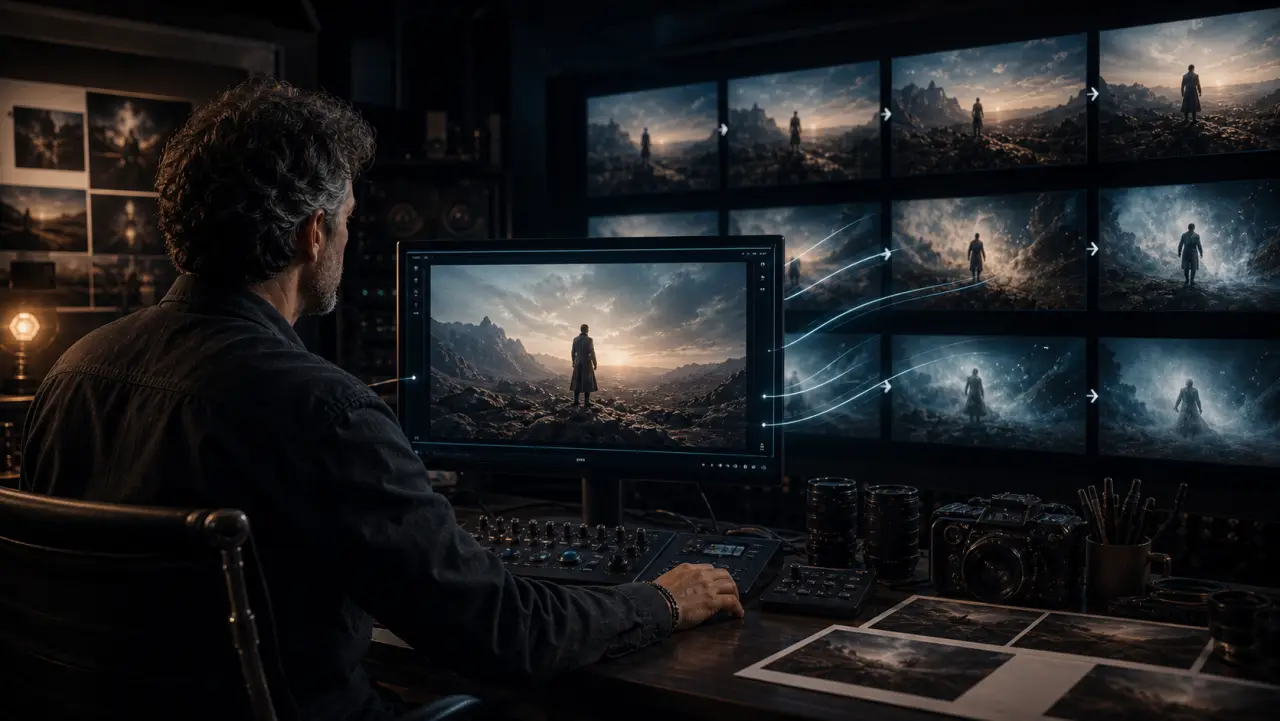
Estimated time: 18 minutes What you'll learn: How to feed your prepared keyframes into AI video tools and generate professional-quality clips with precise motion and camera control. Tools used: Veo 3.1 (via API/Flow), Kling 2.6 (web interface), Runway Gen-4.5
Learning Objectives
By the end of this module, you will be able to:
- Execute an image-to-video generation using a prepared keyframe
- Control camera movement with tool-specific parameters
- Use start-frame and end-frame keyframing for precise motion paths
- Apply the motion brush technique for localized movement control
- Troubleshoot common generation failures and iterate effectively
- Manage a "take selection" process like a film shoot
The Core Technique: Image-to-Video (i2v)
In Module 2, you created composed keyframes — images that combine your character, environment, and exact composition into the perfect first frame. Now you animate them.
Image-to-video generation takes your prepared image and adds motion over time. Think of it as pressing "play" on a photograph. The AI interprets what should move, how it should move, and what the camera should do — but you guide all three.
Every major tool supports i2v, but each implements it differently.
Veo 3.1: Image-to-Video Workflow
Access: Google AI Studio, Vertex AI API, or Google Flow
Step-by-step via API (Python):
import google.genai as genai
from google.genai import types
from PIL import Image
client = genai.Client()
# Load your prepared keyframe
keyframe = Image.open("shot-02-keyframe.png")
# Generate video from keyframe
response = client.models.generate_videos(
model="veo-3.1",
image=keyframe,
prompt="""Medium shot, slight dolly left. The woman picks up a white
ceramic mug from the marble counter. She brings it to her lips and
closes her eyes, savoring the first sip. Soft morning light from the
left window. Warm, intimate, cinematic. Ambient kitchen sounds —
quiet hum of a refrigerator, distant birdsong outside.""",
config=types.GenerateVideoConfig(
aspect_ratio="16:9",
duration_seconds=4,
number_of_videos=3, # Generate 3 takes for selection
)
)
Prompting principles for Veo 3.1 motion:
Be specific about movement type, not just action. Instead of "she picks up the mug," write:
Her right hand reaches slowly for the white ceramic mug, fingers wrapping
around it gently. She lifts it toward her face in a smooth, unhurried
motion. Her eyes close as the mug reaches her lips. A wisp of steam
curls upward.
The more physical detail you provide, the more natural the motion. Veo's language model understands narrative beats — it knows that "savoring" implies slowness, that "first sip" implies anticipation.
Camera movement in Veo 3.1:
Describe camera movement in natural language within the prompt:
Camera movements Veo understands well:
- "Slow dolly in" → gradual forward push
- "Camera tracks left to right" → lateral movement
- "Crane up revealing the cityscape" → vertical rise
- "Handheld with subtle shake" → organic movement
- "Static camera, locked off" → no movement
- "Slow-motion" or "ramped slow motion" → temporal manipulation
- "Rack focus from foreground to background" → depth shift
Pro tip: if you want minimal camera movement, explicitly state "locked-off camera, no movement, static tripod shot." Otherwise Veo may add subtle drift.
Kling 2.6: Image-to-Video Workflow
Access: kling.ai web interface, Higgsfield.ai (aggregator)
Step-by-step via web interface:
- Open kling.ai → AI Video → Image to Video
- Upload your prepared keyframe
- Write your motion prompt in the text field
- Select camera movement from the preset panel
- Set duration (5s or 10s)
- Set quality (Standard or Professional)
- Generate → Select from 2 output takes
Kling's camera control system:
This is Kling's superpower. Rather than describing camera movement in natural language, you select from precise cinematographic presets:
Available camera presets:
┌────────────────────────────────────────────┐
│ PUSH IN / PULL OUT Forward/back dolly │
│ TRUCK LEFT / RIGHT Lateral slide │
│ PEDESTAL UP / DOWN Vertical movement │
│ PAN LEFT / RIGHT Rotational sweep │
│ TILT UP / DOWN Vertical rotation │
│ ORBIT LEFT / RIGHT Circle the subject │
│ CRANE UP / DOWN Jib arm movement │
│ ZOOM IN / OUT Lens zoom │
│ ROLL CW / CCW Dutch angle shift │
│ SHAKE Handheld simulation │
│ BOLTCAM High-speed sweep │
│ EARTH ZOOM OUT Satellite pull-back │
└────────────────────────────────────────────┘
You can combine up to 3 movements per generation, with independent intensity sliders for each.
Example prompt + camera settings for the product shot:
Prompt: "Steam rises gently from the white ceramic mug on the marble
counter. The coffee bag sits beside it. Golden morning light. Minimal
movement — only the steam and subtle light shift."
Camera: Orbit Right (intensity: 20%) + Push In (intensity: 15%)
Duration: 3 seconds
Quality: Professional
The low-intensity orbit + push creates a subtle "product reveal" feeling without dramatic movement — perfect for e-commerce and brand content.
Motion Brush (Kling's precision tool):
For shots where you need specific parts of the image to move while others stay still:
- Upload keyframe
- Select "Motion Brush"
- Paint over the area you want to move (e.g., just the steam, just a hand, just flowing hair)
- Set direction and intensity of movement for each painted region
- Non-painted areas remain static
Use case: A product shot where only steam moves, or a portrait where only hair blows in the wind.
Runway Gen-4.5: Image-to-Video Workflow
Access: runwayml.com web interface
Step-by-step:
- Open Runway → Generate Video
- Upload keyframe as First Frame
- Optionally upload an end frame as Last Frame (powerful for controlled transitions)
- Write motion prompt
- Set duration and resolution
- Generate
Runway's unique strengths:
The First Frame + Last Frame technique gives you the most controlled motion interpolation:
First Frame: Woman standing at the kitchen counter, facing right
Last Frame: Same woman, same kitchen, now turned toward camera, smiling
Prompt: "She turns from the counter to face the camera, a warm smile
spreading across her face, soft morning light"
Runway interpolates the entire rotation naturally, maintaining the character and environment from both reference frames.
Green Screen Mode:
Generate video on a solid green/blue background for compositing:
Upload: Character keyframe on green background
Prompt: "The woman walks forward naturally, swinging her arms slightly,
green screen background"
This outputs a clip with a clean key for compositing over any background in Premiere Pro or After Effects — essential for complex multi-layer compositions.
The Take Selection Process
Professional AI video production mirrors film production in one crucial way: you don't use the first take. Generate 3-5 versions of every shot and select the best.
The selection criteria (in order of importance):
- Character fidelity — Does the character still look like the reference? Check face, hair, body proportions.
- Motion quality — Is movement natural? Any limb distortion, unnatural bending, or teleporting?
- Camera execution — Did the camera move as directed? Is the framing consistent?
- Physical accuracy — Do objects interact correctly? Does liquid pour naturally? Does fabric drape realistically?
- Consistency with other shots — Does the color, lighting, and mood match the rest of the project?
- Audio quality (if native audio) — Is dialogue clear? Do SFX match the action? Is ambient sound appropriate?
Iteration strategy when all takes fail:
If none of your takes are usable, work through this diagnostic:
IF character face is wrong:
→ Provide a clearer/larger headshot reference
→ Add explicit facial description to the prompt
→ Reduce motion complexity (simpler action = better face preservation)
IF motion is unnatural:
→ Simplify the action (one movement, not three)
→ Use motion brush to control specific areas
→ Add end-frame for guided interpolation
IF camera movement is wrong:
→ Use Kling's preset controls instead of text description
→ Reduce movement intensity
→ Switch to a simpler camera movement
IF the style/color is inconsistent:
→ Plan to fix in color grading (Module 6)
→ Add style descriptors to prompt: "warm, cinematic, golden hour"
→ Use style reference images where supported
IF everything is wrong:
→ Your keyframe might be the problem. Go back to Module 2 and recompose.
Generation Settings Cheat Sheet
| Setting | Veo 3.1 | Kling 2.6 | Runway Gen-4.5 |
|---|---|---|---|
| Max duration | 8s | 10s | 10s |
| Native resolution | 1080p | 1080p (Pro: 4K) | 1080p |
| Aspect ratios | 16:9, 9:16, 1:1 | 16:9, 9:16, 1:1 | 16:9, 9:16, custom |
| Takes per generation | 1-4 | 2 | 1-4 |
| Start frame input | ✅ Image | ✅ Image | ✅ Image |
| End frame input | ✅ (Flow) | ✅ | ✅ |
| Motion brush | ❌ | ✅ | ❌ |
| Camera presets | Text-described | Visual presets | Text-described |
| Native audio | ✅ Best-in-class | ✅ Good | ⚠️ Limited |
| Extend/loop | ✅ | ✅ | ✅ |
Practical Exercise
Exercise: Generate Your First Professional Clip
Using the keyframe you created in Module 2's exercise:
- Choose one AI video tool (Kling recommended for beginners — most forgiving and fastest)
- Upload your keyframe as the start image
- Write a motion prompt describing what should move and how
- Set camera movement (if using Kling, try Orbit Right at 20% + Push In at 10%)
- Generate at least 3 takes
- Select your best take using the 6-point criteria above
- Write down what you'd change for the next attempt
Don't aim for perfection. Aim for understanding the process. You'll get better with every generation — the key is learning to diagnose what went wrong and iterate systematically rather than randomly.
Key Takeaways
- Image-to-video is the professional generation method. Your prepared keyframes ARE your quality control.
- Each tool excels at different motion types. Kling for precise camera control, Veo for cinematic quality + audio, Runway for creative effects and transitions.
- Generate 3-5 takes per shot and select the best. This is normal — even traditional film shoots have multiple takes.
- Motion brush (Kling) gives you frame-level precision over what moves and what stays static.
- First frame + last frame (Runway/Kling) provides the most controlled interpolation for complex motion paths.
- When all takes fail, diagnose systematically — face, motion, camera, style, or keyframe quality.
References & Resources
- Google AI: Generate videos with Veo 3.1
- Google Cloud: Veo 3.1 Prompting Guide
- Higgsfield: Kling O1 Element Library
- Runway: Product Changelog
- Pinterest board — Cinematography Camera Movements: https://pinterest.com/search/pins/?q=camera%20movement%20types%20cinematography
Next up: Module 5: Audio-Visual Integration — Dialogue, SFX & Music →
Inquiry